This is the build of the server up to the point where the 3Ware RAID is to be set up. The card is on order and I'll be getting it last.
This is not intended to be an installation guide. Refer to the manuals provided with all the components for that. This is just an overview pointing out things I needed to watch out for.
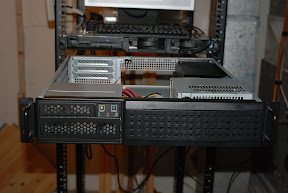
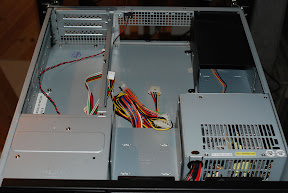
The case mounted in the rack.
The first two photos are of the Chenbro 22300 chassis that I mounted into my APC 43U rack. The server above it, by the way, is an IBM x335 dual Xeon that will become an application and web server. But that's another project.
My first step was to install the motherboard. I first removed the support for the riser card, the CD/floppy cage, and both hard disk cages to give me as much room as possible.
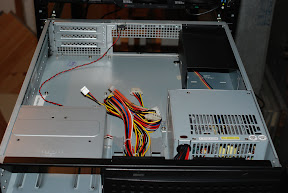
The case with obstacles removed.
Then I installed the rear I/O bezel and the motherboard. This case requires a screw insert to be placed in one of the screw holes in order to mount the motherboard. I missed it the first time and had to remove the motherboard and reinstall. D'oh! I gently tightened the nine screws.
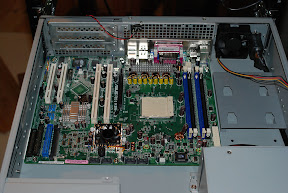
The Asus K8N-LR installed.
Next the AMD Opteron 148 was inserted into the 939 pin socket. Lift the lever up to 90 degrees, align the triangle "notch" (top left in the first photo, bottom left in the second), insert the processor, and gently move the lever back into place.
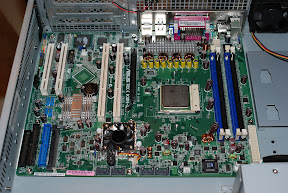
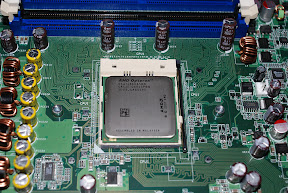
The Opteron CPU in place.
After the CPU is secured the heat sink and fan must be installed. A plastic retainer is supplied with the Asus motherboard. This is screwed into place with two screws. Then some conductive CPU goo is applied to the surface of the Opteron to cover it. The heat sink is placed on top and clipped into place. Of course remember to connect the fan to a power outlet on the motherboard. I plugged it into the connector marked "CPU_FAN1" which was convenient.
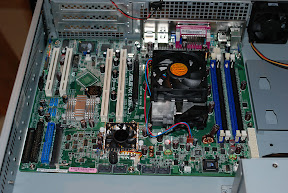
The heat sink installed.
The Chenbro case is equipped with two front fans and one rear fan. Because the nVidia SLI chip's fan was plugged into the "FRNT_FAN1" connector, it was necessary to plug one of the front fans into the "CPU_FAN2" plug while the second fan on the front of the case could be plugged into the "FRNT_FAN1" connector. The rear fan was plugged into the "REAR_FAN1" connector which left the "REAR_FAN2" connector open if I decide to add another rear fan.
The Kingston RAM was installed into the two blue DIMM slots. Pretty standard stuff. Next I connected all the switches and LED's on the case. The Chenbro 22300 is equipped with an intrusion switch which I connected to the appropriate AUX_PANEL1 pins. First the existing jumper needed to be removed.
The fun came when attaching the other switches and the LED's. The power and reset switches were straightforward connecting as per the Asus documentation. However, when I hooked up the LED's only the HDD light worked straight away. This connector worked as per the Asus documentation.
The first problem was the power LED. The motherboard expects a 3-pin connector but Chenbro supplies a single pin "POWER" connector and a single pin "GRND" connector. After a bit of trial and error I determined that connecting the "POWER" connector to the pin marked "POWERLED+" and the "GND" connector to the pin marked "POWERLED-" enabled the power LED on the front panel.
Next I tackled the LAN LED. Initially I connected the case's LAN connector to the pins marked "LAN1_LINKACTLED+" and "LAN1_LINKACTLED-" because I intended to use what Linux considers "eth0", or the first ethernet port. Nothing. So, on a whim I tried the pins marked "LAN2_LINKACTLED+" and "LAN2_LINKACTLED-". Bingo! The activity LED illuminated properly. So, either Linux thinks they're reversed, or the Asus motherboard does.
Next I installed the LG DVDRW drive and my Western Digital OS hard disk in the CD/floppy cage. The 250 GB hard disk didn't fit well into the floppy mounting holes so it was necessary to drill my own holes. Not a big deal. Then I inserted the cage and connected the drives to the on-board IDE connectors and to power. I put the hard disk on the primary IDE channel and the DVDRW on the secondary IDE channel. I also installed all four Seagate SATA drives in their cages and installed the cages. Since I don't have the 3Ware RAID card yet, I didn't hook up power or data.
Next I went to plug the power supply into the motherboard. What? The power supply that came with the Chenbro 22300 only included a 20-pin power connector but the Asus K8N-LR is equipped with a 24-pin connector. I had to go pick up a 20 to 24-pin adapter cable to solve that problem. OK, the power is connected. Let's install the riser card. You're kidding me. It won't fit. Right, the default riser card supplied by Chenbro is a PCI x3 riser card. Unfortunately the K8N-LR requires a PCI-X x2/PCI x1 riser card. I had to order that so I don't have it installed yet. No bother, I don't have the RAID card to install yet either.
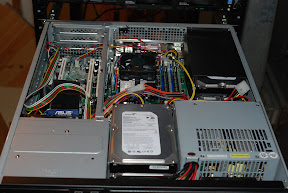
The case with all the received parts installed.
To test the system I booted from a Knoppix v5.1 live CD. These are quite useful because they're packed with all sorts of great utilities. The above trials with the front panel LED's were all tested with Knoppix. I spent some time with the server running Knoppix to test everything out. I must have done something right because everything (aside from the LED's) worked properly straight away.
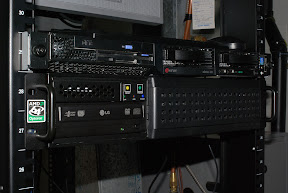
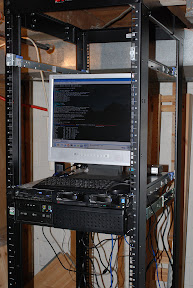
The system running Knoppix in the rack.
Now the only steps left are to install the operating system (Kubuntu Linux for this server), install the riser card, and install and configure the 3Ware RAID controller.

No comments:
Post a Comment